
Why You Should Understand Kali Linux Compared to Kali Purple
Security professionals have long relied on Kali Linux for penetration testing, red‑teaming exercises, and vulnerability research. But now there s a new kid on the block: Kali Purple. Designed around the NIST Cybersecurity Framework s five domains Identify, Protect, Detect, Respond, Recover Kali Purple shifts focus from offense to defense. In this article, we ll walk through what sets these two distributions apart, explore Kali Purple s defensive toolset, and help you decide when to use each one (or both together).
Most organizations today understand that proactive defense is as important as offense. While Kali Linux equips you to find and exploit vulnerabilities, Kali Purple helps you build and maintain the systems that keep those vulnerabilities from being exploited in the first place. Learning both sides of the coin gives you a fuller picture of an organization s security posture.
Brief History
Before Kali Linux, there was BackTrack an Ubuntu‑based distribution that bundled numerous penetration‑testing tools. In 2013, the developers rebuilt their toolkit on top of Debian, giving birth to Kali Linux, a polished, multi‑platform solution for advanced security auditing and red‑team operations. Hundreds of tools, automated scripts, and community‑maintained repositories made Kali Linux the de facto standard for offensive security.
How Is Kali Purple Different from Kali Linux?
Kali Purple is not an “upgrade” or a replacement for Kali Linux; it’s a complementary platform tailored for defensive operations. Whereas Kali Linux ships with tools for network scanning, exploit development, and password cracking, Kali Purple comes pre‑configured with:
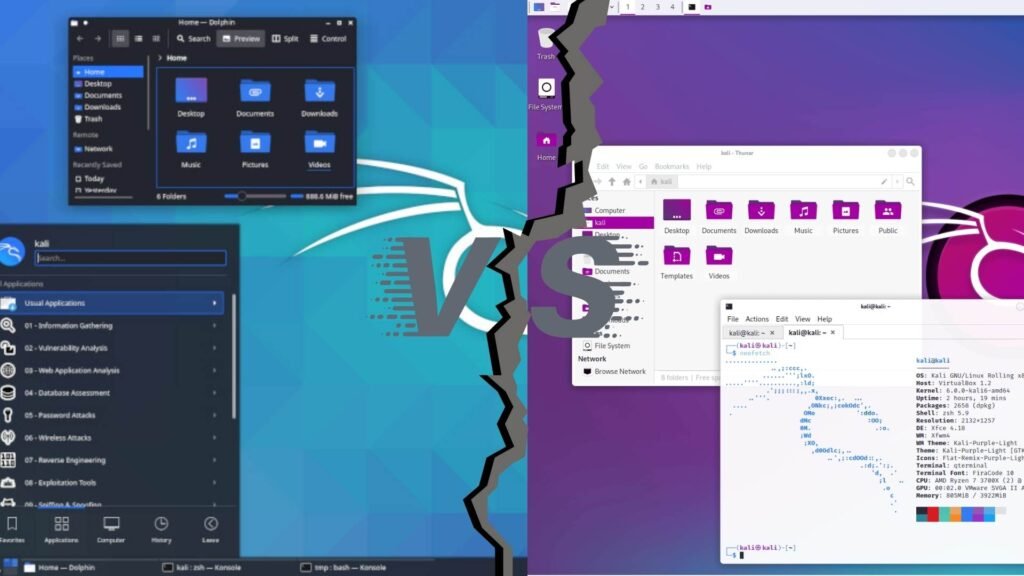
- Defensive tool categories aligned to NIST CSF domains
- SOC‑in‑a‑box architecture for modular Security Operations Center deployment
- Kali Autopilot for automating defensive tasks and playbooks
- Kali Purple Hub for community‑shared pcaps and scripts
Below is a Quick Comparison:
| Feature / Aspect | Kali Linux | Kali Purple |
|---|---|---|
| Primary Focus | Offensive security (red‑team) | Defensive security (blue‑team) |
| NIST CSF Alignment | None | Identify, Protect, Detect, Respond, Recover |
| Pre‑installed Tools | Hundreds of pentest and forensics like Metasploit Framework, Autopsy | 100+ defensive tools (e.g., Elastic, Arkime) |
| SOC‑in‑a‑Box Architecture | No | Yes |
| Automation Framework | Limited (custom scripts) | Kali Autopilot |
| Community Hub | Forums, Git repositories | Purple Hub for PCAPs & blue‑team scripts |
System Requirements:
| Requirement | Kali Linux (Minimum) | Kali Linux (Recommended) | Kali Purple (Minimum) | Kali Purple (Recommended) |
|---|---|---|---|---|
| CPU | 1 GHz single‑core | 2 GHz dual‑core | 2 GHz dual‑core | 4 GHz quad‑core |
| RAM | 1 GB | 2 GB | 2 GB | 4 GB+ |
| Disk Space | 20 GB | 20 GB | 30 GB | 50 GB+ |
| Architecture | x86 / x86_64 | x86_64 | x86_64 | x86_64 |
| Virtualization | VirtualBox, VMware supported | VirtualBox, VMware supported | VirtualBox, VMware supported | VirtualBox, VMware supported |
| Graphics | Any framebuffer‑capable GPU | OpenGL‑compatible GPU | Any framebuffer‑capable GPU | OpenGL‑compatible GPU |
You May Like: Kali Linux vs Parrot OS: 5 Critical Differences That Determine Your Security Edge
Choosing Your Distribution
Decide your objective first:
- Offensive Testing? → Download Kali Linux.
- Defensive Operations? → Download Kali Purple. (just go down a little bit, you will find the download button)
- Both? → Keep both ISOs handy: deploy one VM for red‑team drills and another for blue‑team monitoring.
What Is My Opinion If I Want Both Offense And Defense On One Machine Without Using VMs?
go with Kali Linux Why? Because Kali Linux already comes with all the hacking and penetration-testing tools you need. If later you want to try the defensive side, you can simply install the Purple tools on top of Kali. Doing it the other way around (adding offensive tools to Kali Purple) is much harder and messier.
- If you’re a student just starting out: try Kali Linux in a VM for offensive‑security basics.
- If you need hands‑on blue‑team experience: spin up Kali Purple alongside your Kali Linux setup.
The New Features and Tools in Kali Purple
Identify
Greenbone Vulnerability Management (GVM) continuously scans your network and systems to spot weaknesses before attackers do. It aligns perfectly with NIST’s “Identify” domain and provides actionable reports for patching and risk assessment.
Protect
Elastic Security—the open‑source SIEM from Elastic—aggregates logs and events to help you spot anomalies in real time. Although some users have reported setup hitches on first release, its analytics and alerting capabilities remain industry‑leading.
Detect
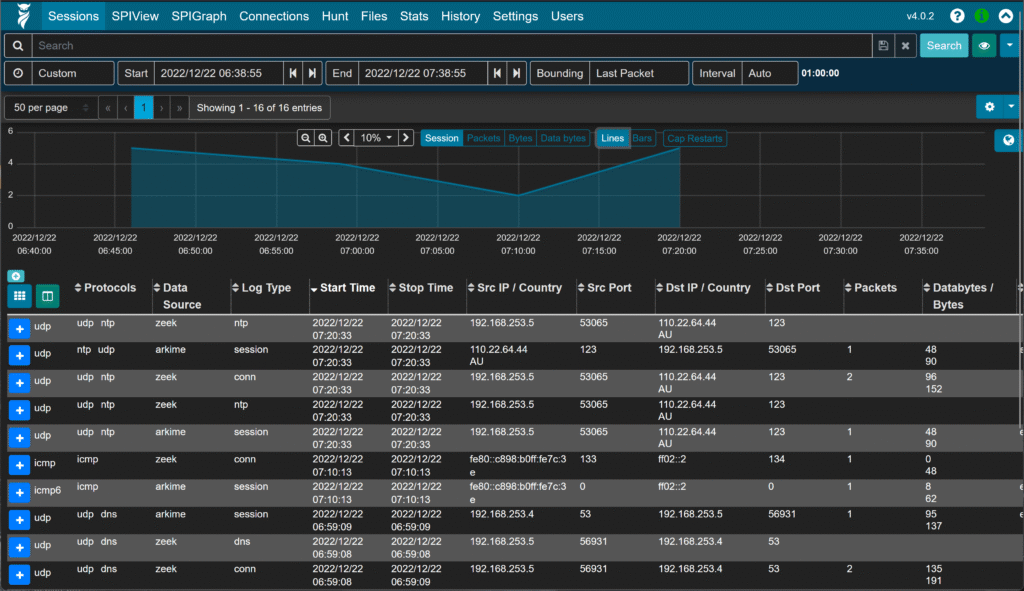
For network forensics, Arkime captures and indexes packets, giving you deep visibility into traffic flows. Malcolm complements Arkime by offering dashboards and enriched threat intelligence. Both tools embody NIST’s “Detect” pillar; note that initial install steps sometimes require manual dependency resolution.
Respond
When alerts fire, TheHive steps in as a collaborative incident‑response platform. It lets analysts track cases, assign tasks, and integrate with playbook scripts. TheHive’s API‑first design means you can hook it into Slack or SIEM alerts to kick off automated triage.
Recover
Although no dedicated recover tool ships by default, TheHive s forensic artifacts and response workflows naturally feed into restoration planning. Combining alerts from Elastic and Arkime with TheHive s timelines, teams can reconstruct an attack, close gaps, and verify system integrity.
Note
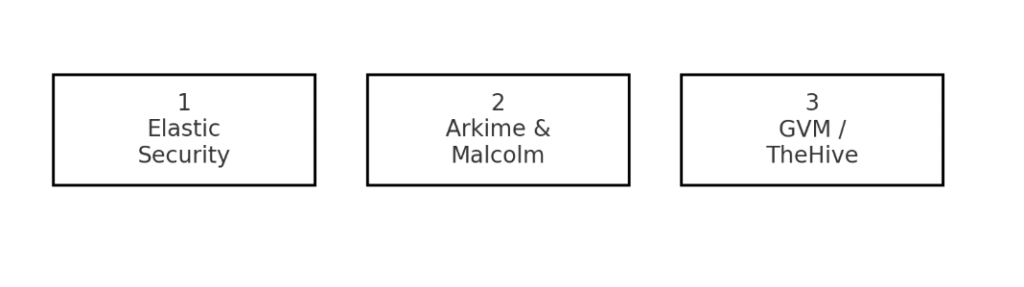
Setting up a SOC in a box with Kali Purple turns separate VMs into a ready made security operations center that can be live in minutes. Three identical machines serve distinct roles: one runs Elastic Security for log aggregation and alerting; another captures full packets with Arkime plus Malcolm dashboards; a third performs continuous vulnerability scanning with Greenbone Vulnerability Management. During installation each machine role is picked by selecting a NIST domain such as Identify, Detect or Respond so the environment follows best practice from the start. The installer links services automatically, wiring Elasticsearch, Kafka and TheHive APIs without manual configuration. Once operational the team can share community PCAPs and Autopilot scripts via Purple Hub, manage incidents in TheHive and store playbooks in a shared Git repository. To scale out add more Detect nodes for extra packet collectors, clone SIEM servers for higher ingest rate or spin up a dedicated Recover VM for forensics and restoration testing. This model is more than tools in a box; it is a reference architecture that adapts as threats and team structures evolve.
| Component | Role | Scale Out Option |
|---|---|---|
| Elastic Security | Central log aggregation and alerting | Add extra ingest servers |
| Arkime & Malcolm | Packet capture and analysis | Distribute packet collectors |
| GVM | Vulnerability scanning | Cluster multiple scanners |
| TheHive | Case management and response | Federate multiple clusters |
Fast Answers
- Need a turnkey SOC in minutes? Boot Kali Purple, choose Detect and Protect roles, and go live.
- Limited hardware? Combine Arkime and GVM on one machine.
- More capacity needed? Clone a node and add it to the cluster.
You May Like: Is it Illegal To Access The Dark Web? 2025
Install Checklist
| Step | Action |
|---|---|
| 1. Download ISO | Grab Kali Purple from the official site. |
| 2. Create VM or Boot Device | Use VirtualBox/VMware or USB on bare metal. |
| 3. Select Desktop & NIST Domains | During install, pick Xfce and your desired CSF domains. |
| 4. Post‑install Updates | Run sudo apt update && sudo apt upgrade. |
| 5. Install Desired Tools | Follow links in Community Wiki for GVM, Arkime, etc. |
| 6. Join the Hub | Connect to Kali Purple Hub for shared resources. |
Common Pitfalls
- Tool Availability: Many Purple tools require manual installation via the Community Wiki—plan for extra setup time.
- Dependency Issues: Early adopters report missing libraries and Python conflicts; stick with
apt install python3-<package>when possible. - Hardware Compatibility: Like Kali Linux, Purple runs best on x86_64 hardware; ARM and VM images are still under development.
Last Words
Kali Linux and Kali Purple represent two sides of the cybersecurity world. Kali Linux is the go-to platform for red-team operations, exploit development, and in-depth penetration testing. On the other hand, Kali Purple focuses on defense with its NIST-aligned toolset, SOC-in-a-box design, and built-in automation that helps security teams monitor and respond to threats.
FAQs — Kali Linux vs Kali Purple
Q1: Is Kali Purple free? Yes Kali Purple is free and open source, just like Kali Linux.
Q2: Can I run Kali Linux and Kali Purple together? Yes. Best practice is separate VMs (one for red-team work, one for blue-team work), but you can use separate physical machines or boots if needed.
Q3: Which should a beginner start with? If you want to learn offensive techniques (pentesting, exploit development) start with Kali Linux. If you want hands-on defensive/SOC work (detection, logs, incident response) start with Kali Purple. Running both in VMs gives the broadest learning path.
Q4: Does Kali Purple replace Kali Linux? No it complements it. Purple is built for defense; Kali Linux is built for offense. Use them together for full coverage.
Q5: Do I need advanced skills to use Kali Purple? Not necessarily. You can begin with basic scans and log collection. Full SOC setup and integrations are easier with some Linux, networking, and SIEM familiarity.
Q6: How do I get started fast with Kali Purple? Grab the Kali Purple ISO, boot it in a VM (VirtualBox or VMware), and during install pick one or two NIST roles (e.g., Detect + Protect). Do the usual apt update && apt upgrade, turn on the tools you need (Elastic for logs, Arkime for packet capture, GVM for scans), then pull a sample PCAP and a simple playbook from the Purple Hub and run a quick test to see alerts through the pipeline.
Q7: Where do I look for real help and docs? Start with the official Kali project pages and the Kali Purple Community Wiki. If you want hands-on examples, check the Kali forums, the Purple Hub, and the Kali GitHub they have install guides, troubleshooting notes, and sample PCAPs/playbooks.