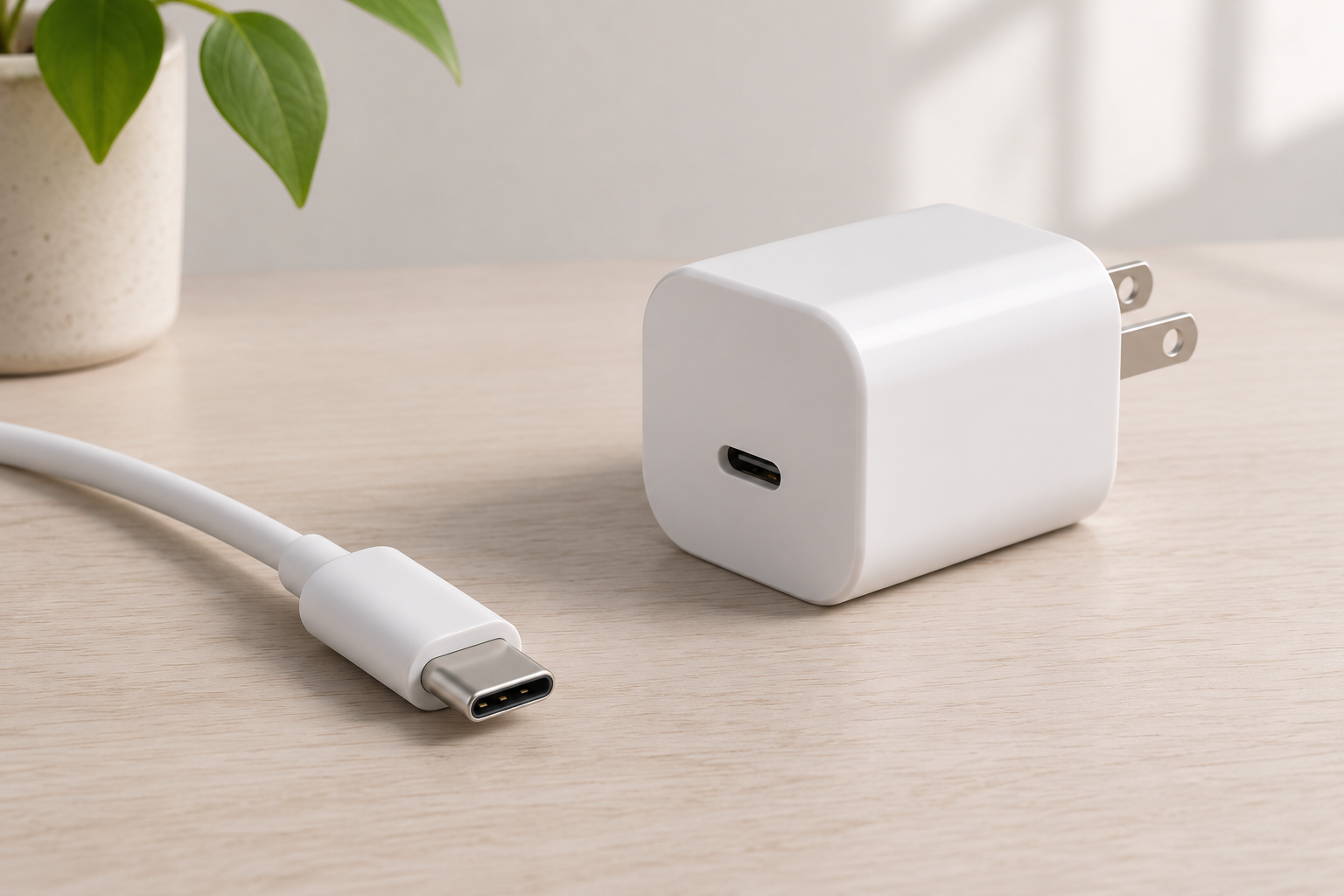

A USB-C charger can fit your laptop and still fail to supply the power it needs. The plug tells you which physical connection it uses. It doesn’t tell you how much power the charger can provide, how quickly files will transfer or whether the connection can carry a picture to a screen.
The key to USB-C vs USB PD is that they describe different parts of the connection. USB-C is a cable and connector specification. USB PD, short for USB Power Delivery, is a power negotiation protocol with supporting hardware. Buyers need to check both, then look separately at data and video support.
| Capability | USB-C | USB PD |
|---|---|---|
| What it describes | The cable and connector specification, including the physical connection. | A power negotiation protocol and supporting hardware. |
| Charging | A USB-C port can supply power without implementing USB PD. | The source and receiving device agree on a supported power profile. |
| File transfers | The connector alone doesn’t establish the data rate. | Power Delivery support doesn’t guarantee fast file transfers. |
| Video | Check the port and cable’s stated video capabilities. | Power Delivery support alone doesn’t establish video support. |
What USB-C tells you
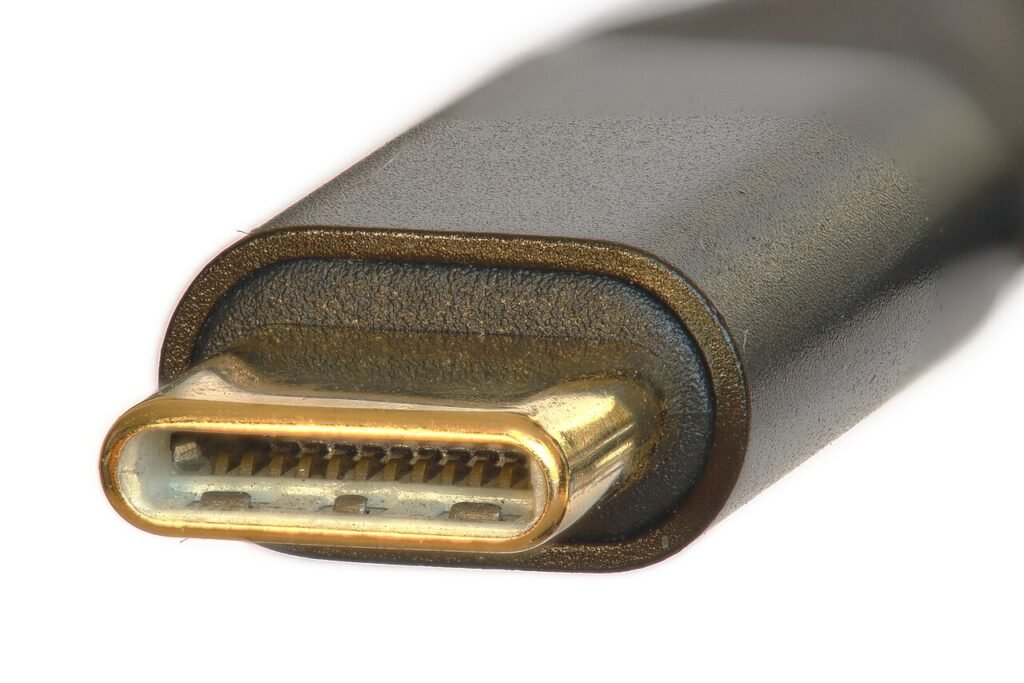
USB-C has a reversible plug, so you can insert it either way up. That convenience doesn’t mean every port or cable with the same shape has the same capabilities. Manufacturers can choose different combinations of charging, data and video features.
The USB Implementers Forum’s terminology guide treats the connector, data performance and Power Delivery as separate capabilities. Microchip’s connector explanation also distinguishes USB-C from USB data specifications. USB PD support must be specified separately for a USB-C port, and neither USB-C nor USB PD guarantees fast file transfers.
Cables differ too. One intended mainly for charging can have different wiring and performance from one designed for a fast external drive. Check the cable’s stated capabilities instead of relying on the shape of its plugs.
How USB PD agrees on power
USB PD lets a power source communicate with the device receiving power. According to Infineon’s technical FAQ, the source advertises its available power profiles, and the receiving device requests a profile it supports. Once they establish a power contract, the source supplies the agreed voltage.
A charger therefore doesn’t automatically send its highest advertised output to every device. The receiving device’s supported power profiles help determine what they agree on. A higher charger power rating alone doesn’t guarantee that a phone will charge faster.
A USB-C port can also provide power without USB PD. Infineon describes implementations using standard 5 V power. A socket may charge a device while lacking the higher voltage options associated with USB PD. Being able to plug in and begin charging doesn’t establish that the connection can meet a laptop’s power requirements.
Charging power and data speed are separate
A cable can carry substantial charging power while offering modest data performance. The USB Implementers Forum says a USB 2.0 Type-C cable can support Power Delivery while providing USB 2.0 data operation at up to 480Mbps. That cable does not support USB 3.2, USB4 or Alternate Mode capabilities.
This explains why a cable that charges a laptop successfully may be unsuitable for connecting a display, or may limit transfers to an external drive. For files, check the explicit data rate. For a screen, check video support. A high charging rating answers neither question.
Power ratings also need careful reading. The USB Implementers Forum’s Power Delivery overview says USB PD Revision 3.1 extended supported power from the previous 100W ceiling to as much as 240W, with updated cable requirements for the higher power range.
Those figures describe supported configurations, rather than the output of every USB PD product. The charger, cable and laptop must all support the relevant capabilities. A cable advertised for 240W cannot raise a lower power charger’s output or change how much power a laptop accepts.
What to check before buying
For laptop charging, start with the laptop’s power requirements and USB PD support. Compare those requirements with the charger’s available voltage and current combinations, and include the cable’s power rating in the comparison. A matching connector alone isn’t enough.
For a phone, compare its supported charging protocol and power requirements with the charger’s listed outputs. Choose a cable rated for the intended connection. Buying a charger with a higher headline wattage doesn’t by itself establish that the phone can use the extra power.
For a desk setup, check charging and display specifications together. The USB Implementers Forum describes a wall-powered monitor charging a laptop while displaying its picture. That arrangement needs the appropriate capabilities in the monitor, laptop port and cable. Don’t assume that a charging connection also supports the display.
For an external drive, check the supported data rate alongside the power specifications. Paying extra for faster data capability only helps if you also need to transfer files. Choose the cable for the job it needs to do: charging a device, moving files, connecting a screen, or supporting several of those tasks through one connection.